How to collect photos from your event guests (the easy way)

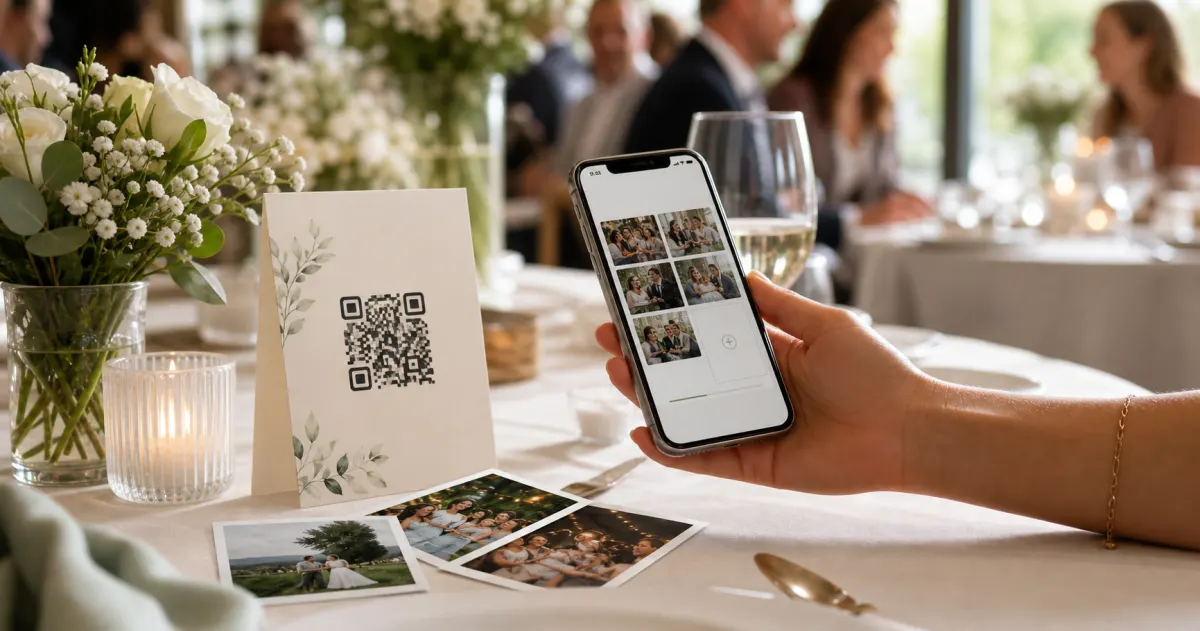
You spent months planning the event. The last thing you should be doing the morning after is sending forty identical texts asking people to share their photos -- and still ending up with maybe a third of what was actually taken. The group-chat album is a graveyard of good intentions. People mean to send their photos, forget, move on with their week, and the moments drift further away with every day that passes.
The problem is never enthusiasm. Guests take plenty of photos. The problem is friction. Sharing requires opening an app, finding the right folder, compressing a dozen files, typing a message, and hitting send -- and all of that has to happen after the event, when the energy is gone and everyone is back to their ordinary lives. A printed QR code on the table removes that gap entirely: guests upload in the moment, while they are still there and still in the mood, and everything lands in one place automatically.
This guide walks through setting up a Gathmo event from scratch -- choosing your settings, placing your QR signs, and managing the album in real time. If you want the product overview first, see how Gathmo works and what each plan includes. By the end, you will have a single private dashboard where every photo, video and voice note from your guests is waiting for you, in full resolution, ready to download or share with a link.
What you will need
- A free Gathmo account
- A printed QR sign (we generate it for you)
- About 5 minutes
Create your event
Sign up free and create your event in under a minute. Give it a name, set the date, and pick the event type that best matches your occasion -- wedding, party, corporate event, birthday, or just a general gathering. Gathmo creates a private dashboard for your event immediately, with no credit card required and no waiting period. Everything you need to share, moderate and download is in one place from the moment you hit create.

Choose what guests can share
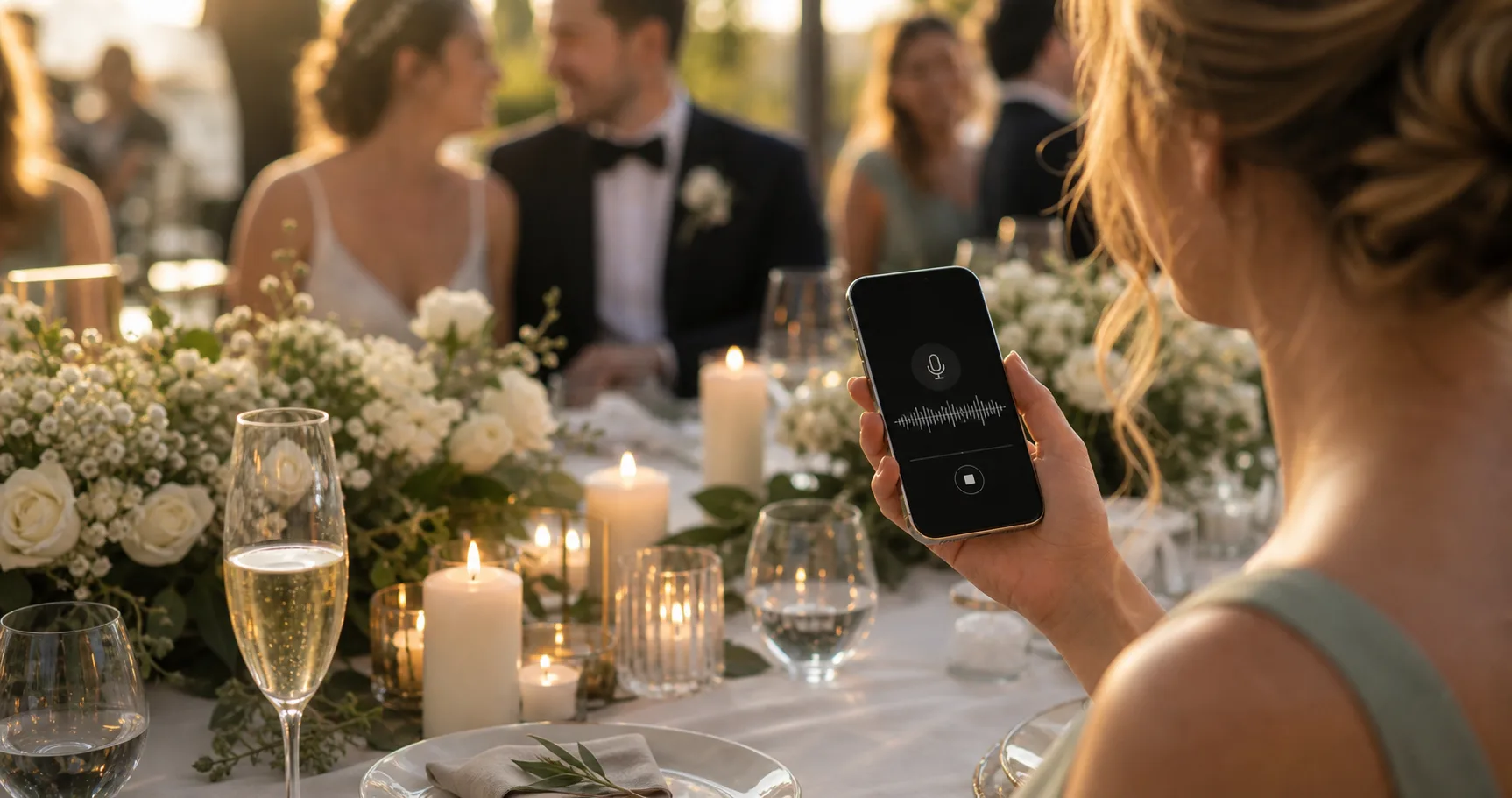
Decide which types of content guests can contribute -- photos, videos, and voice messages are all independent toggles. Most hosts turn on all three: the combination of a quick photo, a short video clip, and a thirty-second voice note turns a guest album into something far richer than a folder of JPEGs. Voice messages in particular tend to become the content hosts treasure most. You can also enable moderation if you would like to review uploads before they appear on the shared wall -- a sensible choice for work events, events with children, or any situation where you want editorial control.
Get your QR code and sign
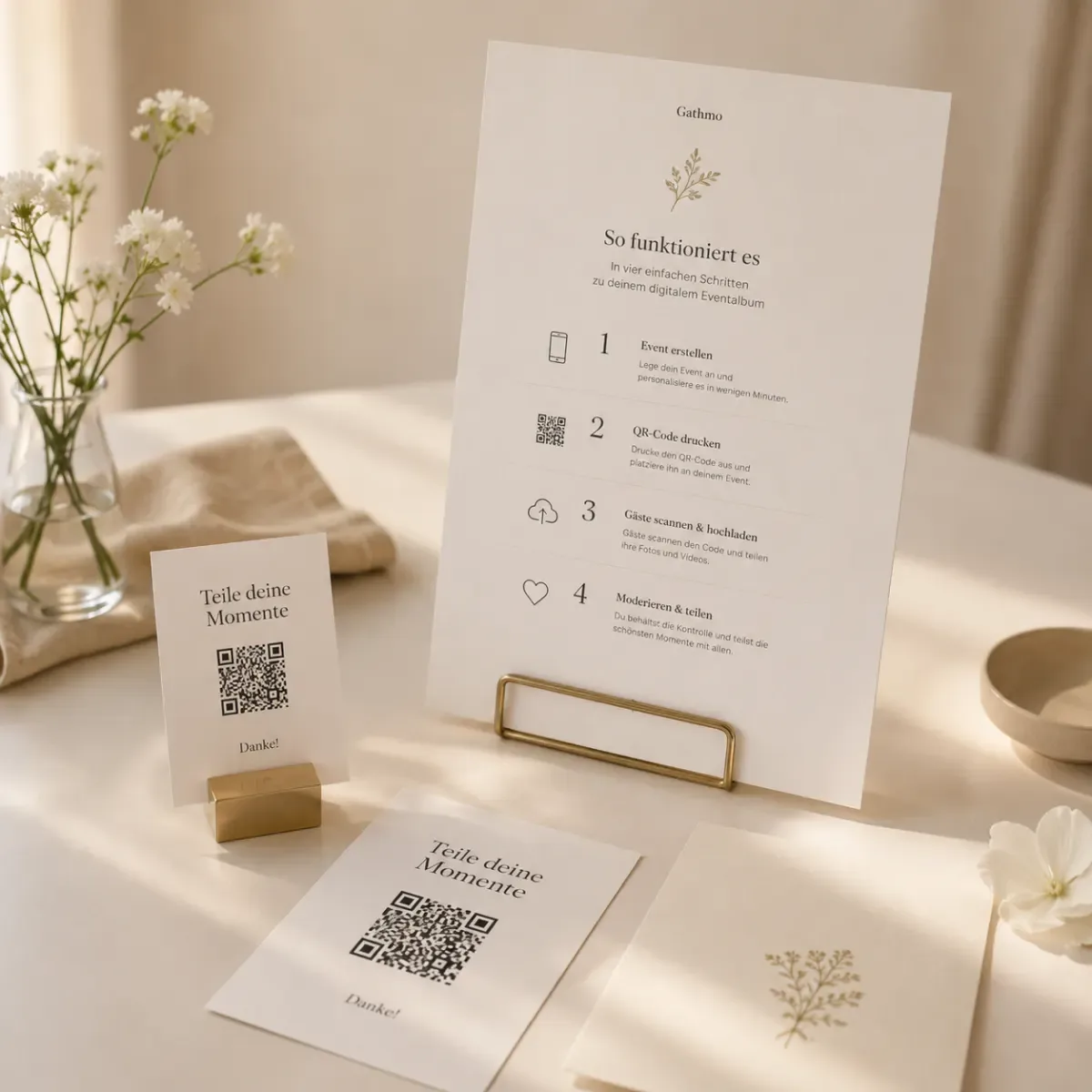
Gathmo generates a unique QR code for your event and wraps it in a print-ready sign -- both a compact table card and a full A4 poster. Download whichever you need (or both), print at home or at a copy shop, and you are set. The sign already includes a clear, friendly prompt telling guests what to do, so you do not need to brief anyone or explain anything on the night. The design is clean enough to sit on a wedding table and practical enough to pin to a corkboard at a work event. Planning wedding stationery around the code? Our wedding QR code guide covers invitations, sizes and print rules.
Place the signs where guests gather
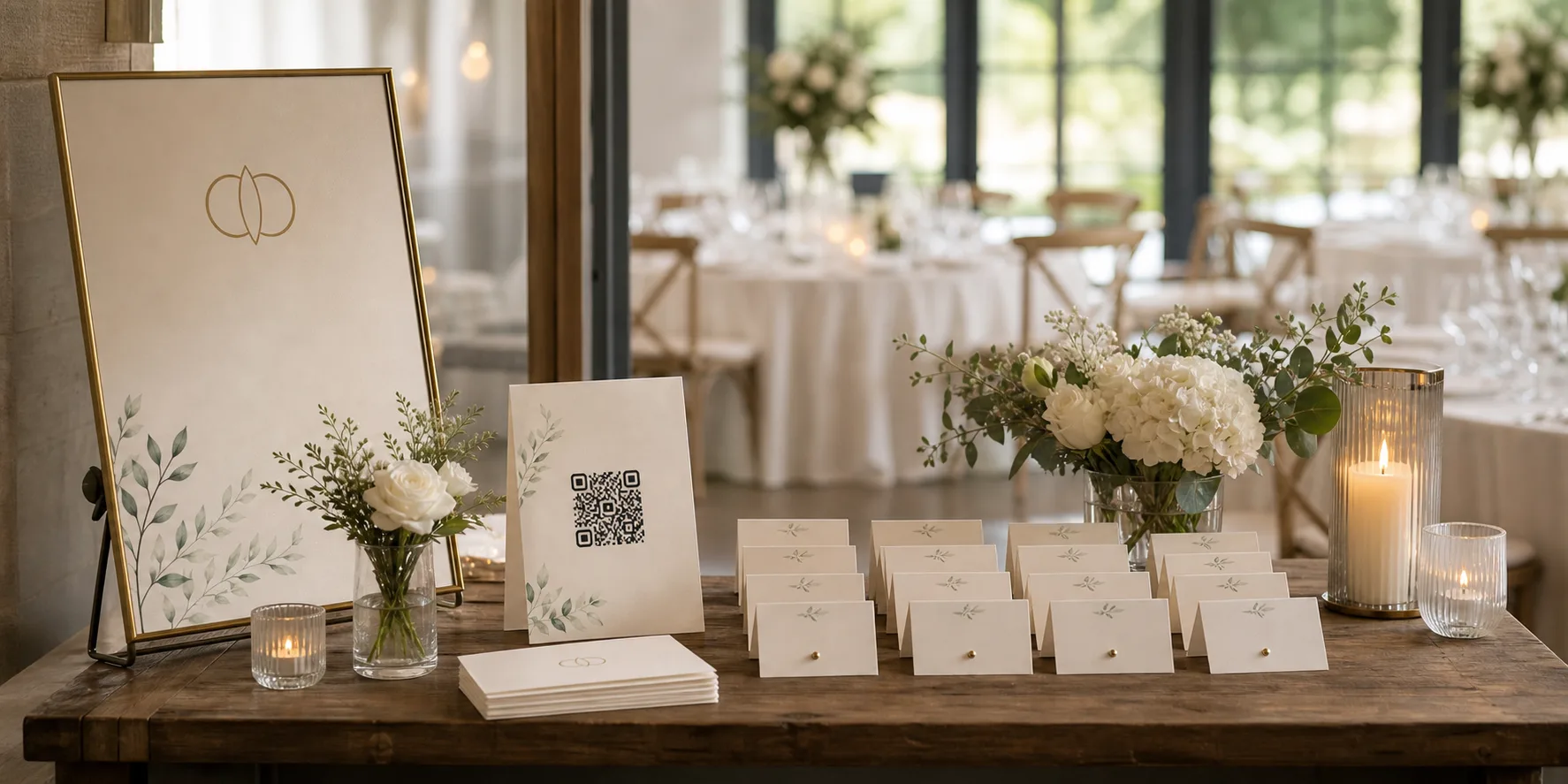
One card per table, one by the bar, and a poster near the entrance or exit. Those three positions catch the natural pauses in any event: guests waiting for a drink, glancing around between conversations, and arriving or leaving when they are thinking about the occasion. You do not need to brief venue staff or make any announcement. The sign explains itself, and guests who have seen a QR code at a restaurant or on a menu already know exactly what to do.
Watch photos roll in and moderate
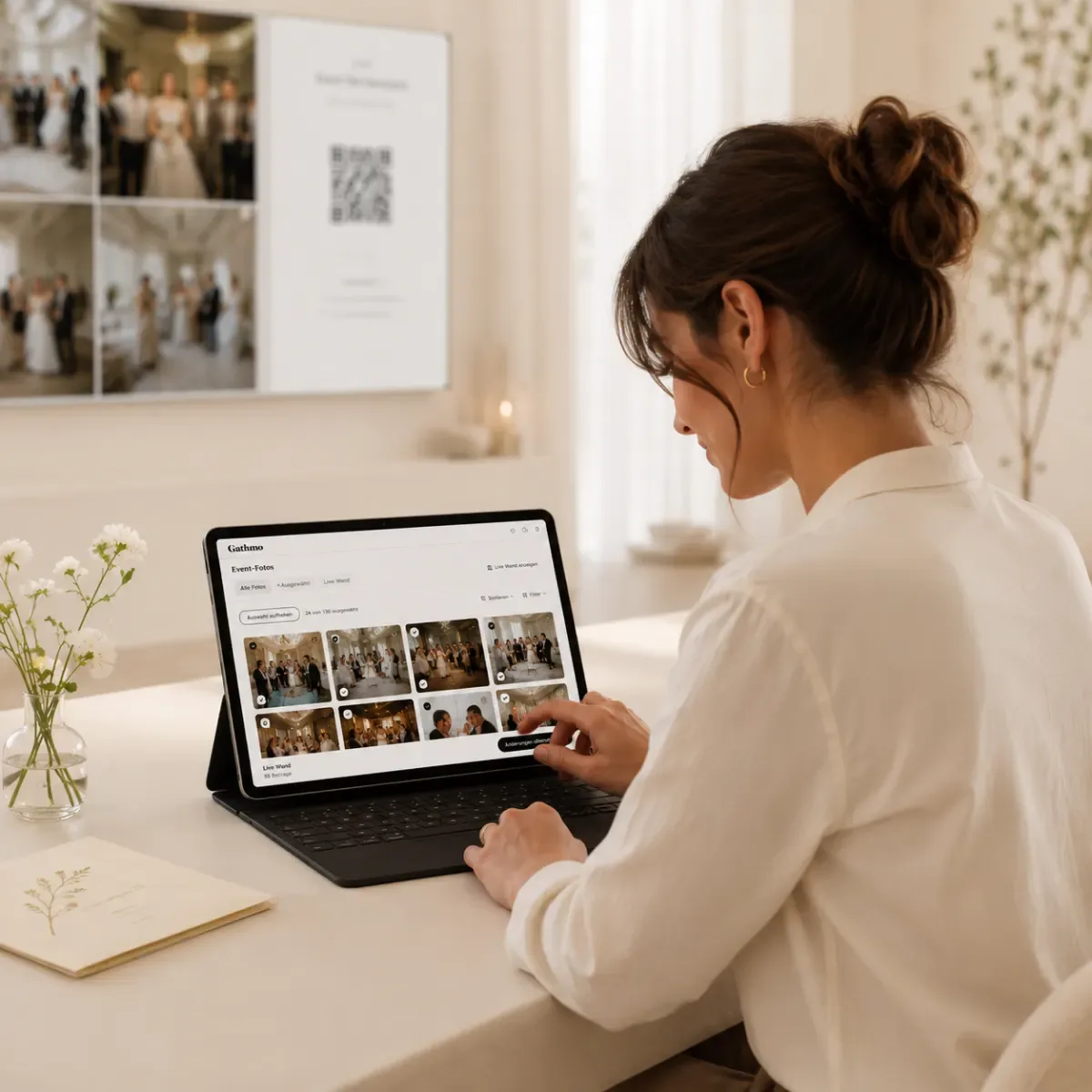
As guests scan and upload, photos, videos and voice notes appear in your event dashboard in real time. You can watch the album build from your phone while the event is still running -- a genuinely satisfying thing to do between conversations. If you enabled moderation, uploads queue for your approval before going live on the shared wall: a single tap approves, another removes.
Share the album and download everything
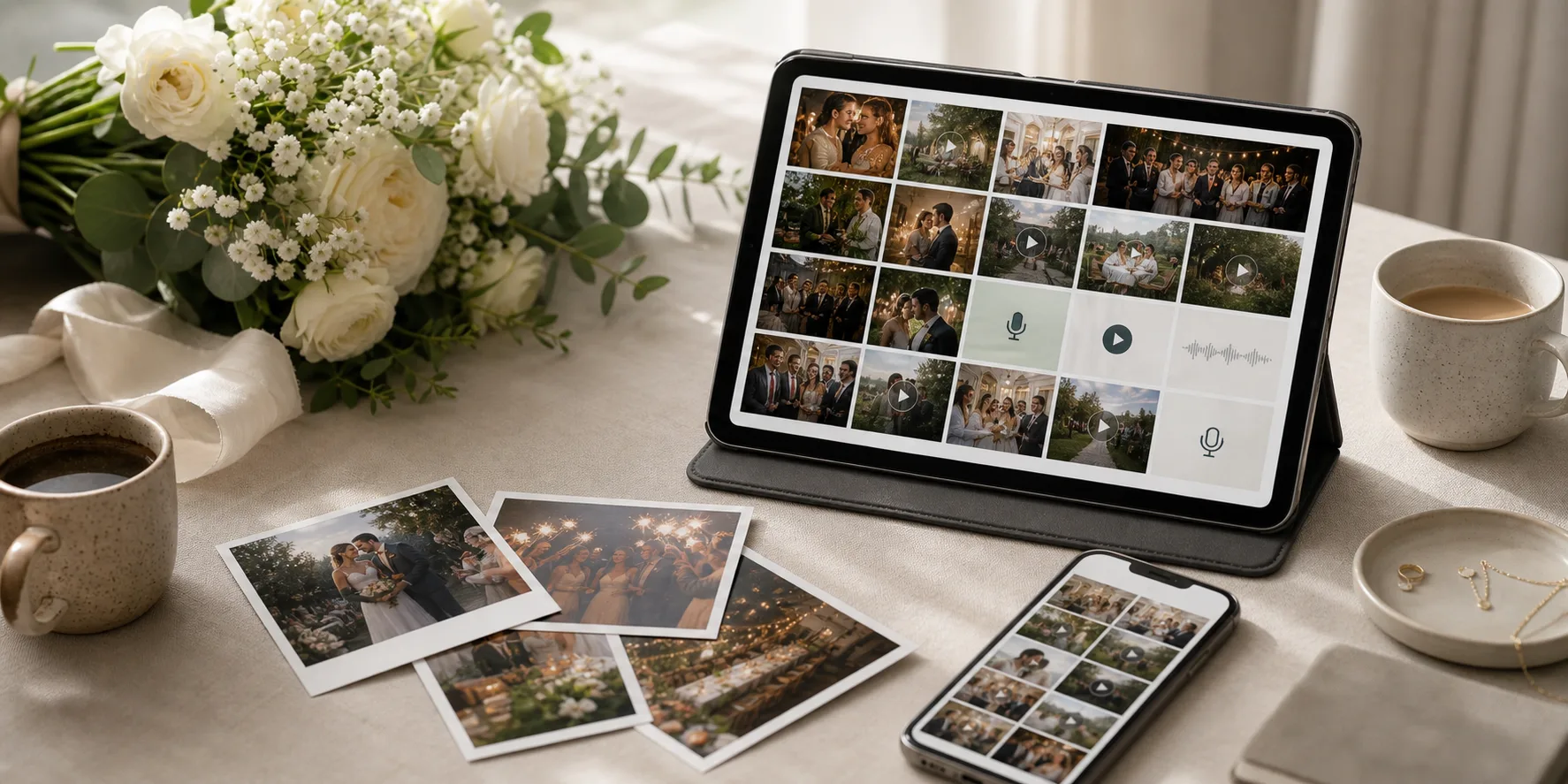
Once the event is over, share the album with a single link -- guests who attended can browse everything that was shared. When you are ready, download every original file in a single ZIP archive (included on all paid plans): full-resolution photos, uncompressed videos, and audio files for every voice note. Nothing is compressed or converted. On paid plans, the album stays available for up to two years, so you can come back to it long after the night.
Quick recap
- Create your free event and set the event type
- Turn on photos, video and voice (and host approval if you like)
- Download and print your QR sign -- table card and/or A4 poster
- Place signs on tables, at the bar, and near the entrance
- Monitor uploads live and approve anything held for moderation
- Share the album link and download every original in one ZIP
Frequently asked
No. Guests scan the QR code and the capture screen opens directly in their phone's browser -- no app, no signup, no account. That is the single biggest reason participation rates are so much higher than with a shared album link: there is no barrier between the guest and the upload. Someone who would never bother installing an app will scan a code without thinking twice.
One per table, plus one at the bar and one near the entrance or exit, is plenty for most events. The easier the code is to spot, the higher the participation rate. For larger events -- weddings over 100, venue parties, corporate dinners -- adding a poster near the bathrooms or at a dedicated photo wall can noticeably increase uploads.
Yes. Enable moderation in your event settings and every upload will queue in your dashboard for your review before it appears on the live wall. You approve with a single tap and can remove anything at any time.
On the free plan, albums are retained for 30 days -- long enough to save what you love, though the one-ZIP batch download is a paid-plan feature. On paid plans, retention extends from six months up to two years, and you can download every original in a single ZIP at any time. We recommend downloading your full archive the morning after the event regardless of which plan you are on.
A printed QR code placed on each table is the most effective method. Guests scan it with their phone camera and photos upload directly to a private album in seconds -- no app, no account, no chasing anyone for photos the next day. Participation rates are consistently higher than with shared links or group chats because guests upload in the moment while they are still at the event, rather than trying to remember later.
A QR code album is typically better for two reasons: participation and access. A QR code scan opens the upload interface in the guest's browser with no login required -- a Google Photos shared link requires a Google account to contribute, which excludes any guest without one. For event hosts, Gathmo's private QR album also gives moderation control and a defined retention window, whereas a Google Photos shared album has no expiry and shows contributor email addresses to other contributors. For collecting photos from a crowd at an event, the no-account QR approach consistently produces more uploads.
Yes. Gathmo accepts video clips alongside photos and voice messages through the same QR upload flow -- guests scan once and choose what to share. Video length limits depend on the plan: up to 3 minutes on the free tier, 5 minutes on Essential (19 EUR per event), 10 minutes on Celebrate (39 EUR), and 15 minutes on Grand (79 EUR). Short clips captured on a phone at an event are typically 15 to 60 seconds and well within all plan limits. The ZIP download after the event includes all video files alongside photos and audio recordings.
 Guide
GuideCollecting guest photos in the EU without the GDPR headache
Consent, data residency, and erasure -- the three things that make event-media GDPR-compliant, and how to get them right by default.
 Comparison
voxu.fm vs Gathmo: which QR wedding guestbook is right for you?
voxu.fm is a focused QR wedding guestbook; Gathmo captures the whole event -- photos, video, voices and a live wall -- from one code. An honest, EU-hosted head-to-head.
 Comparison
knipsmig alternative: Gathmo vs knipsmig, compared honestly
knipsmig is a clean, well-priced QR photo and video collector. Gathmo adds an audio and video guestbook, a live wall and named EU hosting. An honest side-by-side.