How to Collect Photos from Event Guests Without an App (Step-by-Step Guide)

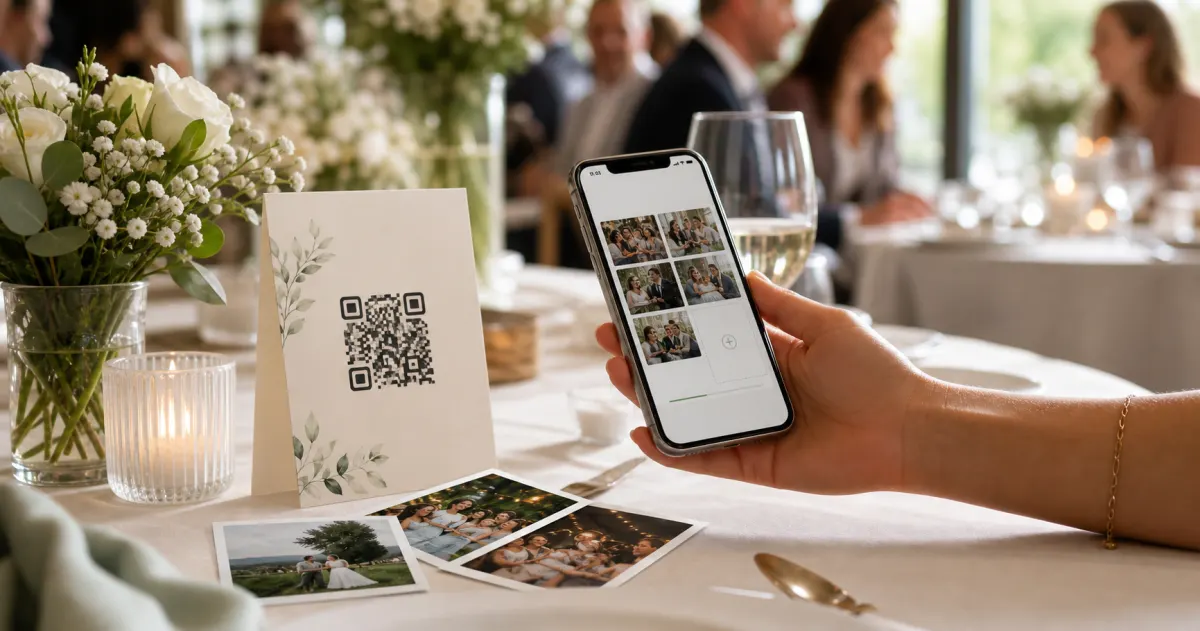
Here's the moment every host knows: the event was perfect, everyone had their phones out — and a week later you're chasing fifteen group chats trying to gather the photos. The good news is you don't need an app, an account, or a single download to fix this. With a QR code and a shared album, your guests can scan, upload, and get back to the party in seconds. This guide walks through exactly how to do it, from the link to the printed sign to the moment the photos land in your album.
The short version. Create a shared event album, get its QR code and short link, print the code where guests will see it, and let people scan and upload straight from their phone's browser. No app store, no sign-up. The rest of this guide is the detail that makes it actually work on the night.
Why "no app" is the whole point
Ask any guest to download an app at a party and you've already lost half of them. They're holding a drink, the venue Wi-Fi is patchy, and "install, create account, verify email" is three steps too many for a photo they'll share once. The friction is the failure.
A browser-based, QR-code approach removes every one of those steps. And the behaviour is already there to support it: QR scanning has become a normal habit, with 86.66% of smartphone users in the UK and Europe having scanned a QR code at least once and 36.40% scanning at least one each week (MobileIron/Ivanti, 2020–2021), and 68% of US consumers having used a QR code in the past year (TEAM LEWIS, 2024). Smartphone penetration in Germany is around 97% (Statista, 2024), so almost every guest already has the only tool they need: the camera they were going to use anyway.
The alternative — the group chat — is exactly the thing people are tired of. One survey found 40% of respondents felt overwhelmed by group-chat messages and notifications (The Conversation, 2023). A scan-and-upload album sidesteps the notification pile-up entirely.
What you need before the event
You only need three things:
- A shared event album — a hosted page that collects uploads in one place. (You can technically point a QR code at a generic cloud-storage folder, but most of those force a login or an app download on guests, which defeats the purpose. A purpose-built event tool keeps the guest side login-free.)
- The album's QR code and short link — the code for printed signs, the link for the WhatsApp group, the email footer, or the digital invite.
- Somewhere to put the code — table cards, a welcome sign, a slide, or a stage banner. More on placement below, because this is where most collections quietly fail.
That's it. No hardware, no booth, no app to manage.
Step-by-step: collecting photos with no app
Step 1 — Create the shared album
Set up an event album with whatever tool you choose. With Gathmo, you create an event in about a minute — set the date, name, and event type — and get a QR code and a short link (in the form gathmo.com/c/CODE) instantly. The free tier is genuinely free: no card, up to 100 uploads, with the album live for 30 days (plus a 14-day grace period).
Step 2 — Get your QR code and short link
Your tool generates these for you. Keep both: the QR code is for anything physical or on-screen, and the short link is for anything you can tap — the guest WhatsApp group, the invitation, a calendar note, the email you send the morning of the event. Belt and braces: some guests will scan, some prefer to tap a link, and you want to catch both. ("How do I share photos via QR code for free?" is one of the most-asked questions on this topic — the answer is simply: share the link and the code; the guest's own camera does the rest.)
Step 3 — Print and place the code so guests actually see it
This is the step that decides whether you get 200 photos or 12. A QR code only works if guests notice it and can scan it cleanly. A few sourced rules:
- Size it to the scanning distance. A reliable guide is the 10:1 rule: the code's minimum size is the maximum scanning distance divided by 10. So a sign read from 1 metre away wants a code of at least ~10 cm (Uniqode). Practical sizes:
- Table cards (read seated, ~30–50 cm): ~3–5 cm (QR Insights).
- A5 stands / flyers (~40–70 cm): ~4–7 cm (Uniqode).
- A-frames / standing posters (~1–2.5 m): ~10–25 cm (Uniqode).
- Never go below the absolute floor of 2 × 2 cm (Uniqode).
- Leave a quiet zone. Keep a blank margin of at least 4 modules on all four sides — it's part of the ISO/IEC 18004 standard, and busy backgrounds break scanning (DENSO WAVE).
- Keep the contrast high. Use a dark code on a light background. Avoid inverting it (light code on a dark background) — many scanners struggle with it (QR Designer).
- If you add a logo, use error-correction Level H (~30% recovery), so the overlay doesn't stop the code from scanning (QRLynx). For plain codes, Level M (~15%) is the usual default (DENSO WAVE).
- Test the actual print. Print a proof at the real size and scan it from where guests will stand, under the real lighting — a code that scans on your monitor can fail on glossy stock or a dim venue (Uniqode; Dynamic QR Creator).
- Prefer a dynamic code. A dynamic QR points to a short link you control, so the same printed code keeps working even if the destination changes — handy for event materials you order ahead of time (Scanova).
Place the codes where attention naturally lands: on each table, at the bar, by the entrance, on the order of events, and on a screen if you have one.
Step 4 — Tell guests what to do (in one line)
Don't assume people know. A short prompt on the sign works: "Scan to add your photos — no app needed." Pair the code with that sentence and you remove the hesitation. If you have a host moment — a toast, a welcome — mention it once out loud.
Step 5 — Guests scan and upload
When a guest points their camera at the code, it opens the album page in their browser. They tap to upload photos and videos straight from their camera roll. With Gathmo there's no app to install and no account to create — guests upload through an anonymous, event-scoped session, not a sign-up. That's the entire guest experience.
Step 6 — Collect everything in one album
Uploads appear in your album as they come in. When you're ready, download the whole collection — every paid Gathmo tier includes a batch ZIP download in original quality. No more reassembling the night from fifteen chats. (Most photos people take never get a second life — around 70% of camera-phone photos are never revisited (Popsa/Digital Camera World, 2025) — so getting them into one shared, downloadable place is half the value.)
Beyond photos: voice messages and live moments, still no app
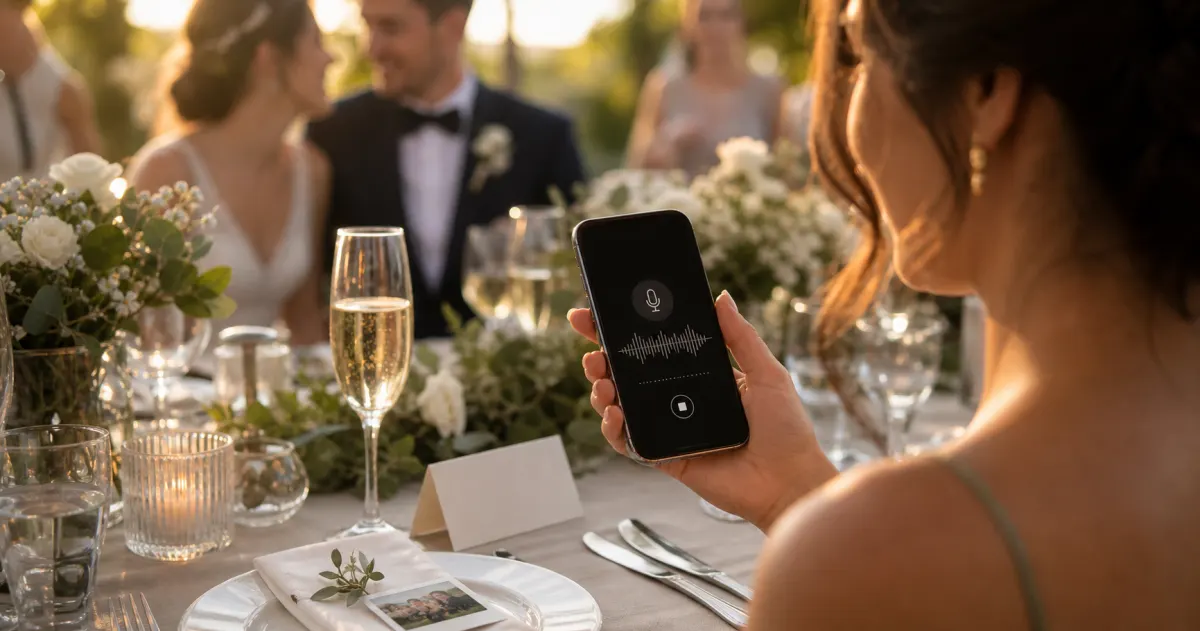
The same scan-and-upload mechanic works for more than photos. Gathmo includes an in-browser audio guestbook — guests record a voice message right in the browser using their phone's microphone, no booth or rented telephone required. On the top tier, recordings even come with automatic transcripts. From the Celebrate tier up you can also run a live slideshow of incoming photos on a screen, and the Grand tier adds a real live stream. All of it runs through the same no-app guest page.
A quick, honest word on privacy
If you're collecting photos of other people — guests, colleagues, children — it's worth being straight about the basics. None of this is legal advice, but the principles are simple and sourced:
- Tell guests what's happening at the point of collection. Where you collect personal data directly from people, you should provide a clear notice — who's collecting it, why, and on what basis (GDPR Art. 13(1)). A one-line privacy note on the upload page covers this.
- Don't keep things forever. GDPR's storage-limitation and data-minimisation principles say personal data should be kept only as long as needed for the purpose (GDPR Art. 5(1)(c) and 5(1)(e)). Time-limited albums are a feature, not a flaw — Gathmo's free album auto-expires after 30 days, and paid tiers run from 6 months up to 2 years.
- Respect deletion requests. A guest can ask for their data to be erased, and a request must generally be actioned within one month (GDPR Art. 17 with the Art. 12(3) timeframe).
- Ordinary photos aren't "biometric" data — face recognition is different. Simply storing and showing photos isn't special-category processing; a photo becomes biometric data only when run through a technical means built to uniquely identify someone, such as facial recognition (GDPR Recital 51; Art. 9). Worth knowing if you're weighing a tool with face-matching search. (To be clear: Gathmo does not offer face recognition at launch — it's on the roadmap, not in the product today.)
- Where the data lives matters. Gathmo stores guest media in the EU (object storage in an EU jurisdiction; database in Frankfurt), which keeps EU-resident data out of third-country transfer mechanics — relevant if your event involves employees, minors, or anyone privacy-conscious.
This section is general information, not legal advice. For a specific event — especially a corporate one with employee photos — check your own obligations or speak to a professional.
The no-app tools, briefly
Plenty of tools now skip the app for guests; the difference is what happens around the upload. Here's an honest snapshot, with prices and features verified from each provider's own pages in June 2026 (currencies are native — today's exchange rate isn't tomorrow's):
| Tool | Guest experience | Free tier | Audio guestbook | EU data residency | Entry price (paid) |
|---|---|---|---|---|---|
| Gathmo | scan → browser, no signup | ✅ (100 uploads) | ✅ + transcript (top tier) | ✅ EU (Frankfurt) | €19–€79 / event |
| Kululu | scan → browser, no signup | ✅ | ❌ | ❌ (Google Cloud, US) | $39 / $99 one-time |
| EventPics | scan → browser, no signup | ✅ | ❌ | ✅ EU | €4.99–€19.99 / mo |
| Fotify | scan → browser, no signup | ✅ | ❌ | ❌ US | $29.99 / $49.99 one-time |
| Qrowd Pics | scan → browser, no signup | ✅ | ❌ | ❓ undisclosed | $39 / $49 one-time |
(All five let guests upload without an app or signup. The differences that matter are the free tier, whether you can collect voice messages, and where the data is hosted. For a fuller, all-tools comparison, see our best event photo-sharing apps guide.)
Create a no-app album on Gathmo
Sign up, create an event, and get a QR code and link. Gathmo requires no app download and no account from guests -- they open the upload page directly in their phone browser on any iOS or Android device.
Print the QR code and share the link before the event
Print table tent cards for the venue and drop the album link in the invitation message. Guests who want to upload before the event (remote wishes, pre-party photos) can do so immediately via the link.
Let guests upload during the event
Guests choose photos from their library or record video and audio directly in the browser. No compression or file conversion is needed; original files are uploaded and stored in the Gathmo album.
Download the full archive after the event
From the host dashboard, download all uploads as a ZIP file. The archive includes original-quality photos, video clips, and audio recordings in separate folders, ready for sharing or archiving.
Frequently asked
Yes. With a QR-code album, guests scan the code, the album opens in their phone's normal browser, and they upload from their camera roll. There's nothing to install. With Gathmo there's no account to create either — uploads run through an anonymous, event-scoped session.
You don't generate it by hand — your event-album tool creates it for you when you set up the event. With Gathmo you get the QR code and a short link the moment the event is created. You then print the code or share the link.
Use a tool with a real free tier, create the album, and share its code and link. Gathmo's free tier needs no card and supports up to 100 uploads for 30 days — enough for a small gathering. For bigger events or longer storage, paid tiers start at €19 per event.
Match it to how far away guests will scan from: roughly 3–5 cm on a table card, 4–7 cm on an A5 flyer, and 10–25 cm on a standing poster, never smaller than 2 × 2 cm. Keep a clear margin around it and always test-print before you order a batch (Uniqode).
It can be, and it's one reason the no-app approach is popular. Show guests a clear notice when they upload, set a sensible retention window, and honour deletion requests. Gathmo also keeps data in the EU. (General information, not legal advice.)
The browser-based QR method: create an event on Gathmo (free, two minutes), display the QR code on table cards or signs, and guests upload directly from their phone browser -- no app install, no account, no email required. Each guest gets a temporary anonymous session when they scan; uploads arrive in the host's album in real time. The host dashboard shows all uploads, allows individual approvals or rejections, and has a download-all ZIP button. This approach works on every modern smartphone on any browser and consistently produces 30 to 50% guest participation when the QR code is on every table and a brief mention is made.
Browser-based QR upload with no account requirement consistently outperforms alternatives. Ranked by typical participation rate: (1) browser QR + table card placement + MC mention: 30 to 50% of guests; (2) browser QR + table card only (no mention): 15 to 30%; (3) shared WhatsApp group: 10 to 25% (compressed quality, poor organisation); (4) app-required upload: 5 to 15% (app download friction kills participation); (5) email-after-event collection: 5 to 10% (relies on guests remembering to act later). The single biggest lever is placement: a QR card at every place setting versus a single entrance sign can double participation.
 Guide
GuideHow to collect photos from your event guests (the easy way)
A printed QR code on the table collects more photos than any link in a group chat -- here is why, and how to set one up in two minutes.
 Guide
GuideCollecting guest photos in the EU without the GDPR headache
Consent, data residency, and erasure -- the three things that make event-media GDPR-compliant, and how to get them right by default.
 Story
StoryThe most underrated wedding keepsake: guest voice messages
Guest voice messages are the wedding keepsake couples replay most -- real voices, real pauses, the things people said when they actually meant them.