How Live Event Photo Walls Work: A Practical Guide for Hosts

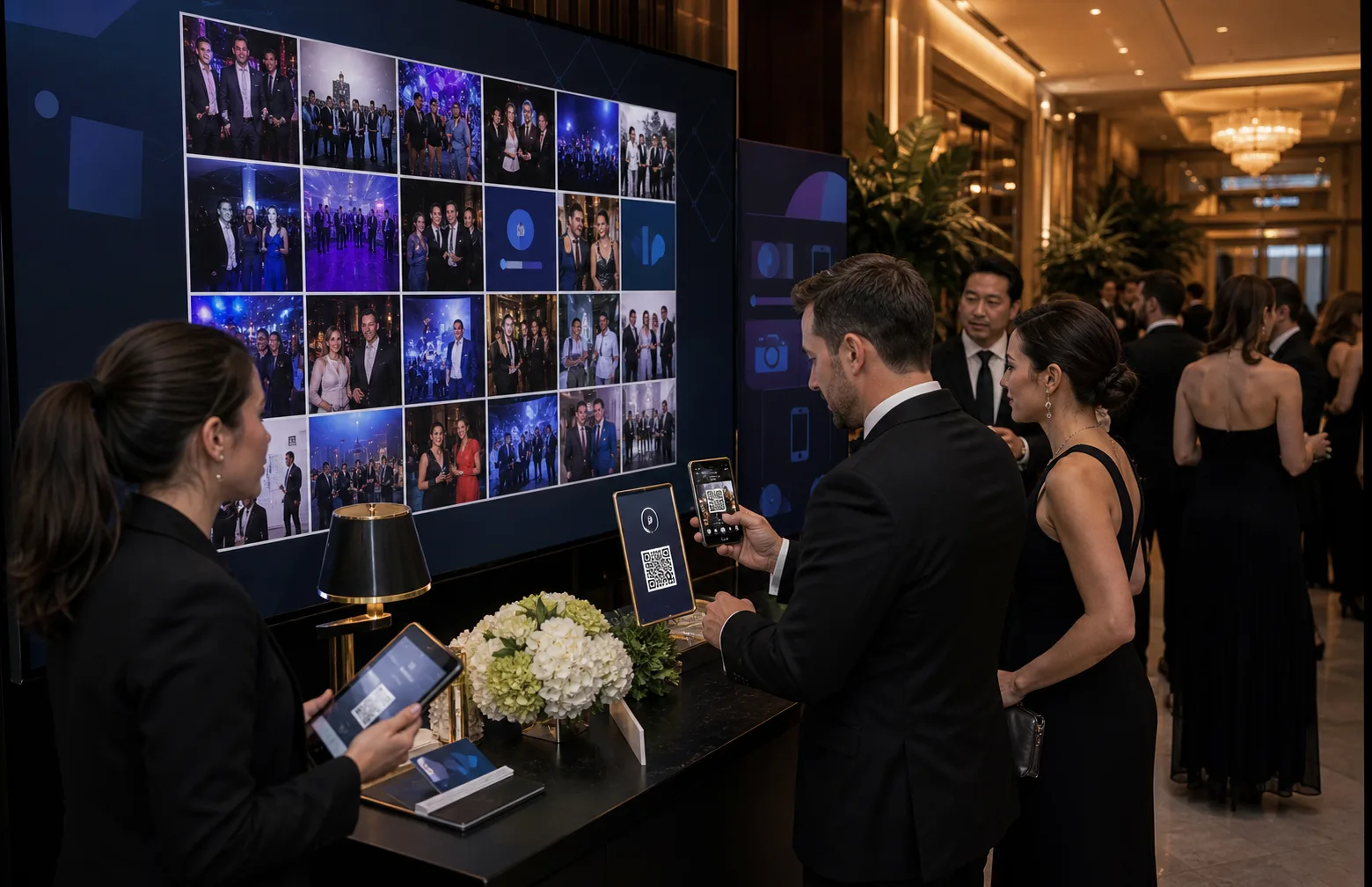
There's a moment at a good event when someone glances up at a screen, sees a photo a friend took thirty seconds ago, and the whole room leans in. That screen is a live event photo wall — a display that shows guests' photos as they arrive, in real time. It's one of the simplest ways to turn a passive crowd into people who are actually making the event together.
This guide explains how a live photo wall works, what you need to run one, and the practical details — QR codes, moderation, privacy — that decide whether it feels magical or messy. By the end you'll know whether you want one, and how to set it up.
The short version. A live photo wall is a screen (a TV, a projector, or a laptop) that displays a slideshow of guest photos as they're uploaded. Guests scan a QR code, take or pick a photo, and it appears on the wall within seconds. No app to download, no account to create. The host controls what shows up.
What is a live event photo wall, exactly?
Strip away the marketing and a live photo wall is three things working together:
- A way for guests to upload — almost always a QR code that opens an upload page in the phone's browser.
- A place where the photos collect — a shared event gallery in the cloud.
- A display that pulls from that gallery and refreshes itself — the "wall" part, shown on whatever screen you have.
People use a few names for the same idea: a live photo wall, a live slideshow, a social wall, or in German simply a Live-Fotowand. The mechanics are the same — photos flow from phones to a screen, live, with no one plugging in an SD card. The thing that makes it feel alive is the loop: a guest takes a photo, it appears on screen, others see it and want to be on the wall too — and the wall fills itself.
How a live photo wall actually works, step by step
Here's the full sequence, from setup to a guest's photo landing on screen.
1. You create the event and get a link + QR code. You name the event, set the date, and the platform generates a short link and a QR code pointing to your event's upload page. With Gathmo, that's a gathmo.com/c/CODE short link plus a downloadable QR code, created in about 60 seconds.
2. You put the QR code where guests will see it. Table cards, an A-frame by the entrance, a banner near the screen — wherever people naturally look. (Sizing is below; it matters more than you'd think.)
3. You connect the wall to the gallery. You open the live-display view in a browser on the device driving your screen — a smart TV, a laptop plugged into a projector, or a tablet — and put it full-screen. That page is the "wall." It polls the gallery and adds new photos as they come in.
4. Guests scan and upload. A guest points their phone camera at the QR code, taps the link, and an upload page opens in their browser — no app install, no sign-up. They snap a photo or pick one from the camera roll and hit upload.
5. The photo is checked, then appears. Depending on your settings, the photo either goes straight to the wall or passes a moderation step first (more below). Within seconds of clearing, it's on screen.
6. Everything is saved. The wall is the showpiece, but the real prize is that every photo collects in one album you can download afterward — not the handful someone eventually texts you.
That "no app, no account" part is the whole reason live walls went mainstream rather than staying a gimmick. The friction that used to kill participation — download this, create that, what's my password — is gone. Guests already know how to scan a QR code: 68% of consumers said they'd used one in the past year (TEAM LEWIS, 2024), and 36.40% of UK and European smartphone users scan at least one QR code every week (MobileIron / Ivanti, 2020–2021).
What do you need to run one?
Less than people expect — mostly software plus a screen you probably already have. You need four things: a display that can open a web page full-screen and stay awake (a TV, a laptop and projector, or a tablet); a reliable internet connection for the display and guests (the wall refreshes over the network, so a dropped connection just pauses new photos until it's back); a photo-sharing platform with a live view; and a printed QR code, your guests' on-ramp.
You do not need a booth attendant, special camera hardware, an app, or for guests to register anything. That's the shift — the "wall" used to mean rented equipment and a technician; now it's a browser tab and a QR sign.
Live slideshow vs. live stream: know the difference
These two terms get used interchangeably, and they shouldn't be — they solve different problems.
- A live slideshow cycles through the photos guests upload, refreshing as new ones land. This is what most people mean by "photo wall" — a rolling display of the room's own photos, perfect for receptions where the screen is part of the décor.
- A live stream (broadcast) sends a continuous video feed out to people who aren't in the room — remote guests, a second venue, colleagues who couldn't travel.
In Gathmo's plans: the live slideshow is available from the Celebrate tier (€39 per event) up, and a true live stream is on the top Grand tier (€79). The Free and Essential (€19) tiers don't include a live display — they're built for collecting and downloading rather than projecting — so if the wall is the point, plan for Celebrate or above. (All prices are per event, EUR.) Want photos rolling on a screen at the party? You want a slideshow. Reach for a stream only when people you're including physically aren't there.
Getting the QR code right (this is where walls succeed or fail)
A live photo wall lives or dies on whether guests can scan the code without thinking about it. Most failures come down to a code that's too small, too low-contrast, or printed without testing. The fixes are simple.
Size it for the scanning distance. The reliable rule is the 10:1 ratio: the printed code should be at least the maximum scanning distance divided by ten (Uniqode). In practice:
- Table tent / table card (read from a seated 30–50 cm): about 3–5 cm.
- A5 stand / flyer (scanned from ~40–70 cm): about 4–7 cm.
- A-frame or standing poster (viewed from ~1–2.5 m): about 10–25 cm.
- Stage banner / large-format (read from ~8–10 ft / ~2.5–3 m): an 8–12 inch code.
The absolute floor for any code scanned at arm's length is 2 × 2 cm (Uniqode); smaller and scans start failing.
Leave the margin, keep the contrast. Every QR code needs a blank "quiet zone" of at least 4 modules on all four sides (DENSO WAVE / ISO‑IEC 18004) — don't crop it or crowd it with decoration. Use a dark code on a light background, and avoid inverted (light‑on‑dark) codes, which many scanners struggle with (QR Designer).
Choose the right error-correction level. Codes come in four recovery levels — L (~7%), M (~15%), Q (~25%), H (~30%) (DENSO WAVE). Level M is the sensible default for clean event cards; step up to Level H (30%) if you're dropping a logo into the code so the overlay doesn't break the scan (QRLynx).
Use a dynamic QR code. A dynamic code lets you change where it points after printing — useful if a link ever needs updating — and works behind a short link like Gathmo's gathmo.com/c/CODE (Scanova, Hovercode).
Test-print before you print 200. Print one proof at the real size and scan it from where guests will stand, under the actual lighting (Uniqode). A code that scans on your monitor can fail on glossy stock or under dim venue lights (Dynamic QR Creator). Five minutes here saves a night of "it won't scan."
Moderation: keeping the wall safe for the room
The honest risk of putting a live screen in front of a crowd is that anything a guest uploads could appear on it. For a wedding or a kids' birthday, that's a non-starter without a safety net. Two settings handle it:
- A review queue. New uploads wait until you (or someone you trust) approve them before they hit the wall. Slightly slower, maximum control — right for formal events.
- Automatic AI moderation. The platform screens uploads for inappropriate content before they're shown. Gathmo runs AI moderation plus a human review queue from the Essential tier (€19) up; the Free tier doesn't include it. Among competitors this is uneven — tools like Kululu and Fotify offer it, while several popular options don't (per provider pages, as of June 2026). Don't assume every tool has it.
Practical advice: for any event with children, colleagues, or a mixed crowd, run the review queue even if AI moderation is on. The few seconds of delay is invisible to guests and removes the one scenario that can ruin a live display.
A quick word on privacy (because a screen is public)
A live photo wall is, by design, a public display, so it's worth a moment of thought. None of this is legal advice — talk to a professional for your situation — but the broad picture for an EU host is straightforward.
When you collect photos from guests, you're expected to be transparent at the point of collection about who's running the event, why, and on what basis — the spirit of GDPR Art. 13, which requires an information notice when personal data is gathered directly from people. A clear line on the scan page ("Photos you upload may be shown on the event screen and saved to the host's album") covers the wall.
Two reassurances. First, ordinary photos are not "special category" biometric data under the GDPR — under Recital 51, images only become biometric data when run through a specific technical means for uniquely identifying a person, such as facial recognition. A plain photo wall doesn't do that. (Worth flagging: Gathmo does not offer face-recognition photo search — it's on the roadmap, not in the launch product.) Second, good practice is to set a retention period rather than keep photos forever, aligning with the storage-limitation principle (Art. 5(1)(e)). Gathmo bakes this in with per-tier retention windows (30 days on Free up to 2 years on Grand) and a one-tap way to handle a guest's deletion request.
For corporate events — where you're displaying photos of employees — consent tends to be the safer footing, with extra national rules in places like Germany. More on that on gathmo.com/corporate.
Why hosts bother: the payoff
Beyond the screen looking great, a live photo wall fixes a measurable problem: the photos exist, but you never get them. Around 70% of camera-phone photos are never revisited (Popsa, 2025), and 40% of people feel overwhelmed by group chats (The Conversation, 2023) — exactly where guest photos go to die. A live wall pulls those photos out of private camera rolls into one shared place, in the moment, where they get seen and saved. With smartphone penetration around 97% in Germany (Statista, 2024), every guest already carries the only device they need.
Choose a platform with real-time live wall moderation
Verify the platform refreshes the display in real time and lets you moderate uploads before they appear on screen. Gathmo's live photo wall refreshes automatically and requires host approval for each photo before it goes live.
Set up the live wall display URL on the venue screen
Open the live wall display URL from the Gathmo dashboard in a browser on the device connected to the venue screen or projector. Set to full-screen mode. The display updates automatically as approved photos arrive -- no further interaction needed.
Display the QR code prominently at multiple points
Place the QR code on table cards, at the bar, and near the entrance. Include the album link in the event programme or app. A brief mention during the opening session is the highest-leverage action for driving participation.
Moderate uploads from the dashboard on your phone
Open the Gathmo host dashboard on a phone or tablet to review and approve uploads as they arrive. Approved photos appear on the wall within seconds. Remove any unsuitable content before it reaches the screen.
Frequently asked
They scan a QR code with their phone camera, which opens an upload page in the browser — no app, no account. They take or choose a photo, upload it, and it appears on the event screen within seconds (after any moderation you've set).
Yes — that's the entire point of a QR-based wall. The upload page runs in the phone's browser, with nothing to install or sign up for. Gathmo issues guests a short-lived, event-scoped token behind the scenes so they never create an account.
No. You need a screen that can open a web page full-screen (a TV, a laptop and projector, or a tablet) and an internet connection. No booth, no attendant, no camera gear.
A review queue (you approve photos before they show) and/or automatic AI moderation. Gathmo offers both from the €19 tier up. For sensitive events, run the queue.
No. A live slideshow cycles guest photos on a screen in the room; a live stream broadcasts video to people outside it. Pick the slideshow for an on-site wall; the stream only when you're including remote guests.
A live event photo wall is a display screen showing guest-uploaded photos in real time as the event happens. Guests scan a QR code, upload from their phone browser, and see their photo appear on the venue screen within 5 to 30 seconds. No app or account required. The host controls the wall from a dashboard: approving or rejecting uploads before display, adjusting the layout, and managing the display URL. On Gathmo's Celebrate tier (39 EUR per event), the wall updates as a slideshow. On Grand (79 EUR), the feed is a live stream that updates continuously. Hardware: any display connected to a laptop via HDMI or Chromecast, running the wall URL in full-screen browser mode.
A slideshow rotates through uploaded photos at set intervals (typically 5 to 15 seconds per photo), making it ideal for events where photos arrive in batches -- dinner parties, birthday gatherings, conference networking sessions. A live stream updates the display in near-real-time as each upload arrives, creating a continuous feed that feels more like a social media wall. The stream is better for high-energy events like concerts, trade show activations, or New Year's Eve countdowns where the constant refresh creates excitement. On Gathmo, the slideshow is included in the Celebrate tier (39 EUR); the live stream is included in the Grand tier (79 EUR).
 Guide
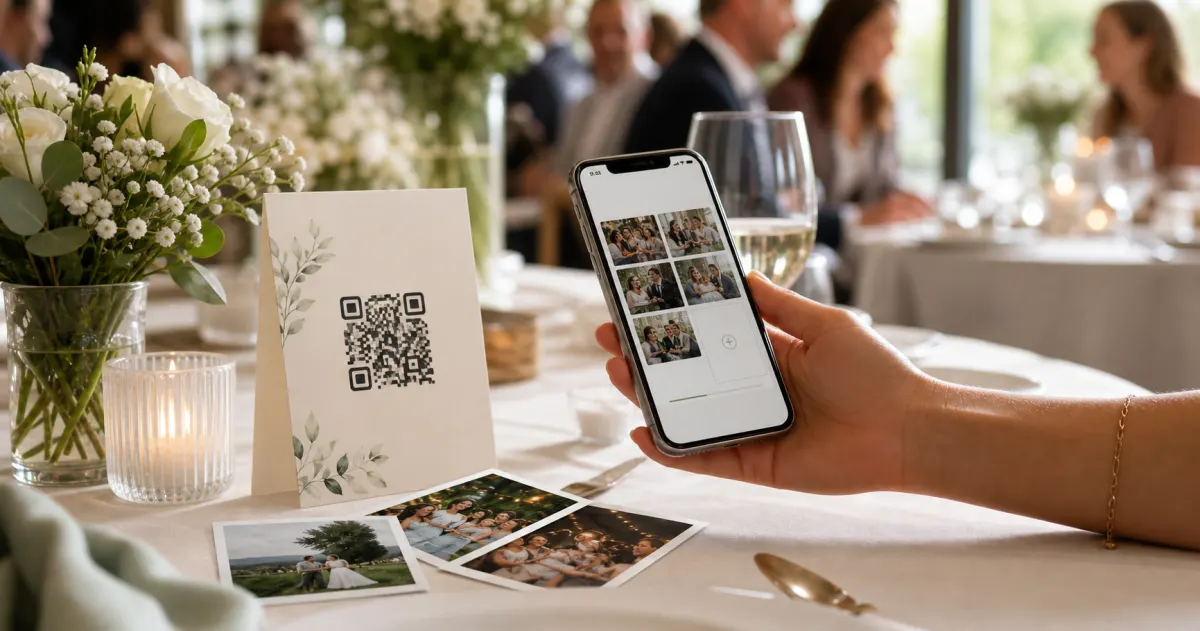
GuideHow to collect photos from your event guests (the easy way)
A printed QR code on the table collects more photos than any link in a group chat -- here is why, and how to set one up in two minutes.
 Guide
GuideCollecting guest photos in the EU without the GDPR headache
Consent, data residency, and erasure -- the three things that make event-media GDPR-compliant, and how to get them right by default.
 Story
StoryThe most underrated wedding keepsake: guest voice messages
Guest voice messages are the wedding keepsake couples replay most -- real voices, real pauses, the things people said when they actually meant them.