The Complete Guide to QR Codes for Event Photo Sharing

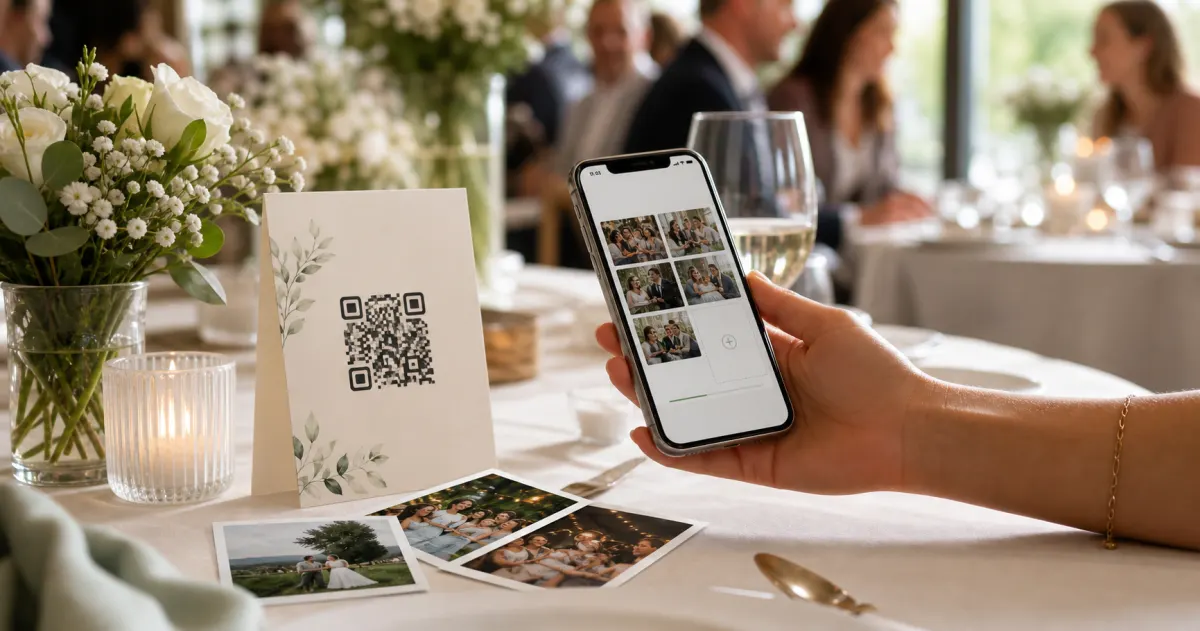
By the end of any good event, the photos are scattered. A few land in the group chat, a handful get posted, and the rest sit forgotten on a hundred different phones. A QR code fixes the scatter at the source: you print one small square, guests point a camera at it, and everything they shoot flows into a single shared album. No app to download, no account to create, no "can you send me that one?" the next morning.
This guide covers the whole thing end to end — how QR photo sharing actually works, how to make and place a code so people reliably scan it, what's legal when you're collecting other people's photos, and how to choose a tool. It's deliberately tool-agnostic; where Gathmo is relevant we'll say so plainly, and where it isn't, we'll point you elsewhere.
What is QR code photo sharing?
QR code photo sharing is a simple chain. You create an event in a photo-collection tool and it gives you a QR code (and usually a short link). You print or display that code where guests will see it. A guest opens their phone camera, points it at the code, and a web page opens — the upload page for your event. They pick photos and videos from their camera roll, or shoot something new, and tap upload. Those files land in your shared album, which you can view, moderate, and download.
The reason it works at events specifically is that it removes the two things that kill guest participation: installing an app and creating an account. Most modern event tools, Gathmo included, open straight in the phone's browser — guests scan, land on a page, and upload without signing up for anything. Group-chat fatigue is real and measurable — one survey found 40% of respondents felt overwhelmed by group-chat messages and notifications (The Conversation, 2023) — and a QR album sidesteps the chat entirely. It also rescues photos that would otherwise be lost: around 70% of camera-phone photos are never revisited (Popsa "Memory Economy," 2025), so getting them off guests' phones and into one place is most of the value.
How does a QR code for photos work?
A QR code is just a machine-readable way of storing a web address. When a guest's camera reads the pattern, it decodes that address and offers to open it. For event photo sharing there are two flavours worth understanding:
- Static QR codes encode the destination directly into the pattern. They can't be edited after printing — if the link changes, the code is dead. (O12 #17)
- Dynamic QR codes encode a short redirect URL that you can re-point at any time. For event materials — where you might fix a typo, swap the destination, or reuse signage — dynamic codes are the sensible default. (O12 #18)
QR codes also have built-in error correction, which is why a code still scans with a logo in the middle or a small smudge on it. There are four levels — L recovers about 7% of the code, M about 15%, Q about 25%, and H about 30%. (O12 #8) Level M (~15%) is the usual default for general use, while you should switch to Level H (~30%) whenever you overlay a logo, because the logo covers part of the code and the extra redundancy makes up for it. (O12 #9, #10)
The good news for guests: scanning is now a mainstream habit. About 68% of US consumers used a QR code in the past year (TEAM LEWIS, 2024), and in the UK/EU 86.66% of smartphone users have scanned at least one, with 36.40% scanning weekly (MobileIron/Ivanti). In Germany, smartphone penetration was forecast at about 97% in 2024 (Statista), so "everyone has a phone that can scan this" is a safe assumption at a typical event.
How do I create a QR code for event photos?
You don't generate the code yourself from a generic QR maker — that just makes a code, not a place for photos to go. Instead you create the event in a photo-collection tool, and the tool produces a code wired to your album. The flow is roughly the same everywhere:
- Create the event. Set a name, date, and (with some tools) an event type. With Gathmo this takes about a minute and gives you a QR code and a short link immediately.
- Choose what guests can upload. Photos, videos, and — on some platforms — voice messages. Upload limits vary by plan (for example, Gathmo's free tier allows 30-second voice messages and 3-minute video clips on Free, with longer limits on paid tiers).
- Brand the page (optional). Add a title, a cover image, or your logo so the upload page feels like part of your event.
- Download and place the code. Export it for print, drop it into a sign template, and put it where guests will see it. Keep it dynamic if your tool allows, so the same printed sign keeps working even if you change something later. (O12 #18)
How to design and place your QR code so people actually scan it
A code that doesn't scan is worse than no code — it teaches guests it won't work. These specs are sourced from QR print best practice, not guesswork.
Size it to the scanning distance. The reliable rule of thumb is the 10:1 ratio — the code's printed size should be at least the scanning distance divided by ten. (O12 #1) In practice:
- Table cards / table tents: about 3–5 cm, for a seated guest scanning from ~30–50 cm. (O12 #12)
- A5 stands / flyers: about 4–7 cm, for ~40–70 cm. (O12 #13)
- A-frame / standing posters: about 10–25 cm, viewed at ~1–2.5 m. (O12 #14)
- Stage banners / large-format: roughly 20–30 cm (8–12 in) for viewing from ~2.5–3 m. (O12 #15)
- Lanyards / business cards: never below 2 × 2 cm, with 2.5 × 2.5 cm recommended for close range. (O12 #2, #11)
Leave the quiet zone. A QR code needs a blank margin of at least 4 modules on all four sides — without it, scanners struggle to find the code. (O12 #3, #4) Don't let busy backgrounds or borders creep into that margin.
Keep the contrast right. Use a dark code on a light background. Avoid inverting it (light modules on dark) — many scanners read inverted codes unreliably, which matters for those tempting dark stage banners. (O12 #6, #7)
Export at print quality. Render at ≥300 DPI for close-range print like cards and postcards. (O12 #16) And always test-print a proof at the actual size and scan it from the real distance, under the real lighting and on the real stock — a code that scans on your monitor can fail on glossy paper or a dim venue. (O12 #19, #20)
The ISO/IEC 18004 standard underpins all of this — it's the QR symbology spec that defines module structure and the quiet-zone requirement. (O12 #5) You don't need to read it; you just need a tool that respects it.
Is it legal to collect guests' photos with a QR code? (GDPR)
If your event is in the EU, you're handling other people's personal data, so the GDPR applies. For an ordinary private event this is more reasonable than it sounds. The essentials:
- You need a lawful basis. As the host (the "controller"), you generally process ordinary event photos under legitimate interest or consent — consent being the safer basis where the balance is doubtful. (GDPR Art. 6(1)(a), 6(1)(f))
- Ordinary photos are not automatically "biometric." A photo only becomes special-category data when run through "a specific technical means allowing the unique identification" of a person — i.e. face recognition, which needs an Art. 9 ground. A plain shared album doesn't cross that line. (GDPR Recital 51; Art. 9(1))
- Tell guests, then honour their rights. Provide an information notice at the point of collection — the scan/landing page is the natural place — and action any deletion request within one month. (GDPR Art. 13(1); Art. 17(1); Art. 12(3))
- Mind data residency and retention. Set defined retention windows rather than keeping photos forever, and prefer EU-hosted storage to sidestep international-transfer complications. (GDPR Art. 5(1)(c), 5(1)(e); Chapter V)
For corporate events, photographing employees rarely fits neatly under employment-law necessity, so freely-given, documented consent is usually the right call. (BDSG § 26(1)) A fuller treatment lives in our GDPR and event photos guide and on gathmo.com/corporate.
Not legal advice. This is a plain-English summary citing the regulation directly. For a specific situation — especially a corporate or public event — talk to a qualified data-protection adviser.
How to choose a QR photo-sharing tool
Once you've decided to use a QR album, the choice between tools comes down to a handful of questions. Prices below are quoted in each provider's native currency and verified from their own pages as of June 2026 — re-check before you buy.
- Do you want guests' voices, not just photos? Most tools collect photos and video; far fewer offer an in-browser audio guestbook. Gathmo includes one, and on its top tier transcribes the recordings. Among competitors, GuestCam, Wedibox, EventShare, WedUploader, and JoinMyMoment offer an audio guestbook (JoinMyMoment also transcribes); most others don't.
- Does EU data residency matter? If your event involves employees, children, or anyone who'd rather their photos not sit on a US server, hosting location is the whole decision. EU-hosted options include Gathmo (Frankfurt), EventPics, Lense, JoinMyMoment, and several German tools; GuestCam, Kululu, Fotify, Wedibox, and others are US-hosted. Be wary of vague "European servers" claims and look for a named location.
- Free tier or one-time fee or subscription? Pricing models differ sharply. Gathmo is per event in EUR — Free / €19 / €39 / €79. Kululu is $39 / $99 one-time with a free tier; Fotify $29.99 / $49.99 one-time; LiveWall from $14.95 one-time; EventPics is a monthly EUR subscription (€4.99–€19.99/mo). GuestCam is $49 / $97 one-time, no free tier. Where a price is only available on request — for example several "Partner"/business plans — treat it as pricing on request rather than guessing.
- Will you reuse it under your own brand? Agencies, planners, and photographers reselling this to clients need real white-label, not a logo swap. Most competitors stop at cosmetic branding; Gathmo offers end-to-end white-label on its B2B tiers (Studio €39/mo, Agency €99/mo, Enterprise from €399/mo).
A couple of honest caveats about Gathmo so you can plan around them: face-recognition photo search and RSVP are not in the launch product — both are on the roadmap (Phase 2), not available today. If selfie-based photo finding is a must-have right now, a tool like GuestCam is the stronger choice. For an in-depth, fully-sourced feature-and-price comparison across the market, see our Best Event Photo Sharing Apps in 2026.
Create a QR photo sharing event on Gathmo
Sign up, create an event, and download the QR code from the dashboard. The code is linked to a private album that only receives uploads when guests scan it -- nothing is collected until the code is in active use.
Print the QR code correctly for your venue
Use SVG for any print larger than a business card. For table cards, size the code at 3-5 cm; for standing signs viewed from 1 metre, use 10-15 cm. Print on matte card stock at 300 DPI minimum and test-scan before the full print run.
Brief guests on how to use it
Place one line of instruction alongside the code: 'Scan with your phone camera to add your photos.' On iPhone and most Android devices, the native camera app scans QR codes without a separate app. Test the code on both iOS and Android before the event.
Monitor uploads and download the archive
Watch uploads arrive in the Gathmo dashboard in real time during the event. After the event, download the complete archive as a ZIP file. The archive includes all photos, video clips, and audio files in their original quality.
Frequently asked
Yes — with most modern tools, including Gathmo, the QR code opens a web page in the phone's browser. Guests upload directly with no app install and no account.
Create an event in a tool with a free tier, place the QR code where guests can see it, and they upload to your album. Gathmo's free tier covers up to 100 uploads; other free options include Kululu, Fotify, and EventPics (verify each provider's current limits, as of June 2026).
The code stores a web address; the guest's camera decodes it and opens your event's upload page. A dynamic code lets you change that destination later without reprinting. (O12 #17, #18)
Use the 10:1 rule — printed size ≥ scanning distance ÷ 10. Roughly 3–5 cm on a table card, 10–25 cm on an A-frame, and never below 2 × 2 cm. Always test-print and scan a proof before mass printing. (O12 #1, #2, #12, #14, #19)
It can be. Process ordinary photos under legitimate interest or consent, show guests an information notice at the point of collection, honour deletion requests within a month, and prefer EU-hosted storage. Face-recognition is a stricter case. (GDPR Art. 6, 13, 17; Recital 51)
Five steps: (1) Choose a browser-based platform -- the QR code should route guests directly to an upload screen with no login required (Gathmo, GuestCam, EventPics, Kululu); (2) Create the event on the platform -- name, date, optional branding; takes under 5 minutes; (3) Download the QR code from the host dashboard (SVG for print, PNG for digital); (4) Place the QR code on every table card (primary), welcome sign (secondary), and bar area (tertiary); (5) Test the full flow on your own phone before the event -- scan the QR, complete a test upload, confirm it appears in the host dashboard. Total setup time: 20 to 30 minutes including test.
Three text elements that consistently produce the highest participation: (1) A specific action -- Scan to add your photos (not just Scan Here); (2) A clear value statement -- All photos collected in one private album; (3) Optional: a specific prompt such as and leave a birthday message or share your best photo from tonight. The sign should display the QR code at sufficient size (minimum 3 cm square for table-card distance, 5 cm or larger for standing signs), on a white or light background, with no decorative clutter immediately around the code. A plain QR card with instruction text consistently outperforms elaborate designs in real-world scanning rates.
 Guide
GuideHow to collect photos from your event guests (the easy way)
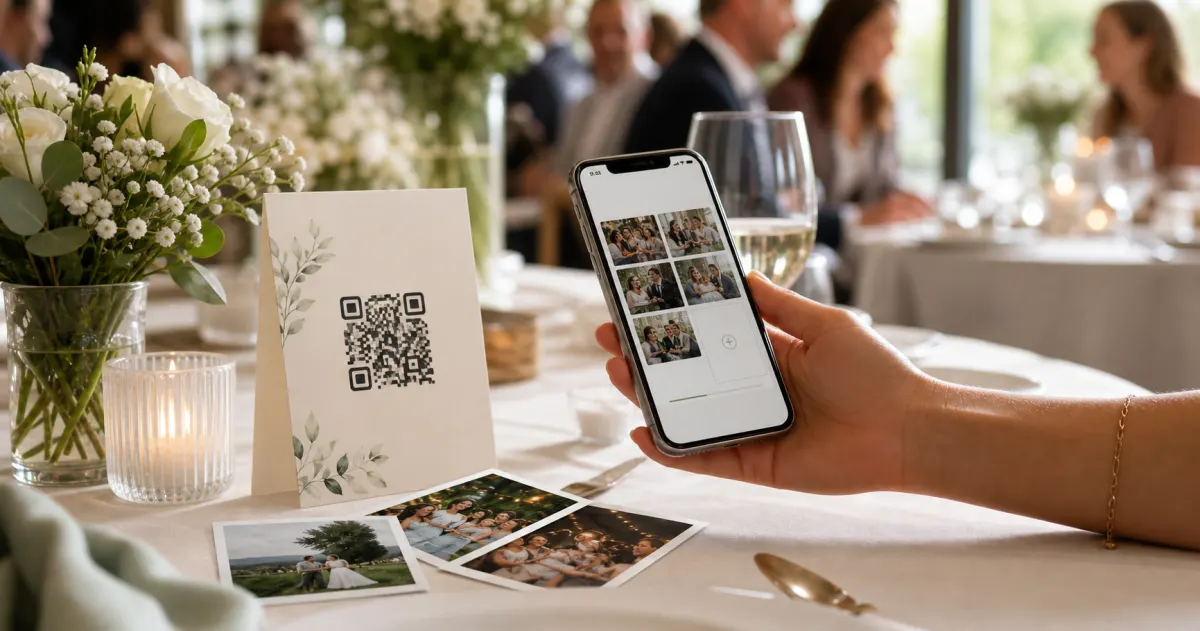
A printed QR code on the table collects more photos than any link in a group chat -- here is why, and how to set one up in two minutes.
 Guide
GuideCollecting guest photos in the EU without the GDPR headache
Consent, data residency, and erasure -- the three things that make event-media GDPR-compliant, and how to get them right by default.
 Story
StoryThe most underrated wedding keepsake: guest voice messages
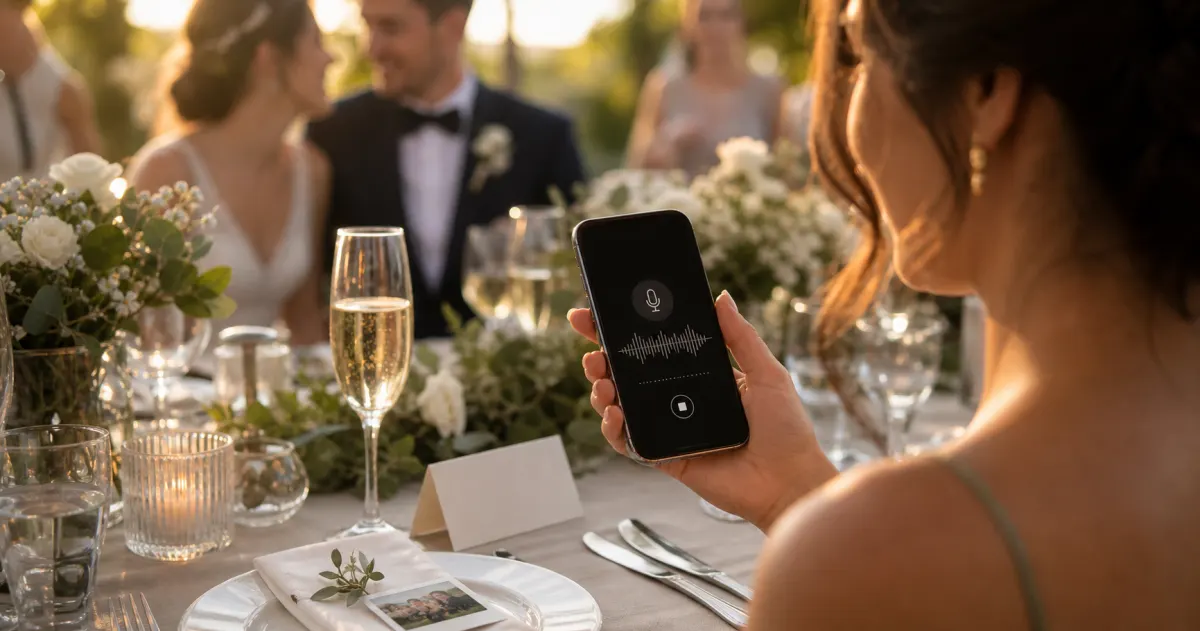
Guest voice messages are the wedding keepsake couples replay most -- real voices, real pauses, the things people said when they actually meant them.