How to Add a Live Photo Slideshow to Your Wedding Reception (No Tech Team Required)


There's a moment that happens at the best receptions. Halfway through dinner, someone glances up at the screen and sees a photo from twenty minutes ago — the bride laughing at something the best man whispered, a child asleep under a table, two grandparents dancing before anyone else dared. The whole room follows their gaze. And for a few seconds, the wedding is watching itself happen.
That moment is a live photo slideshow: a screen at your reception that shows the photos your guests are taking, in real time, as they take them. It is one of the warmest, simplest things you can add to a wedding day — and despite how it looks, it does not require a laptop wrangler, a projector technician, or anyone "running the slides." If your venue has a screen or a blank wall and a way to put a web page on it, you can do this yourself.
This guide walks through exactly how a live wedding slideshow works, what you need, how to set one up so it runs itself, and the small details — screen choice, what to show, keeping it tasteful — that separate a magical display from a chaotic one.
What a live wedding slideshow actually is
A live slideshow is a single web page, shown full-screen on a display at your reception, that pulls in guest photos as they upload them and cycles through them automatically. There's no shuffling files onto a USB stick the night before, and nothing to pre-load. The slideshow is the album, projected.
It's worth being clear about what this is not:
- It is not a pre-made montage. A photographer's edited "first dance" video is made in advance. A live slideshow is unscripted — it shows what's happening now.
- It is not a photo booth. No props, no attendant, no printed strips. Guests use the phones already in their pockets.
- It is not the same as a live stream. A slideshow shows photos on a screen in the room. A live stream broadcasts the event to people who aren't there — a different feature, covered below.
The mechanism is the same one modern wedding photo apps use to collect photos at all: guests scan a QR code, land on a web page on their phone, and upload. With the slideshow enabled, those uploads also appear on the big screen. One action by the guest; two places it lands — your private album, and the wall.
Why couples love it (and one honest caveat)
The appeal is emotional, not technical. A live slideshow turns photo-sharing from a chore you'll deal with later into part of the party right now. Guests see their own photos celebrated on screen, which — gently, without anyone being asked — encourages everyone else to take and share more. The room becomes the photographer.
There's a quieter reason it matters, too. Most of the photos your guests take will otherwise vanish into their camera rolls: research on how we use our phones suggests around 70% of camera-phone photos are never revisited in any meaningful way (Popsa, 2025). A slideshow gives those photos a reason to exist beyond the moment — they're seen, shared, and saved into your album the instant they're taken.
The honest caveat: a live slideshow shows photos as guests upload them, which means it can show photos you haven't seen yet. That's the whole charm — and the whole risk. A well-chosen tool lets you keep control (we cover moderation below) so the screen stays joyful and never awkward.
What you need to run a live slideshow yourself
You need three things, and you almost certainly have all of them.
- A photo-sharing tool with a built-in slideshow. This is the engine. Guests upload to it; it produces the slideshow page. You don't build anything.
- A screen, and a way to get a web page onto it. A TV with a browser, a laptop plugged into a projector, a tablet propped on the gift table, or the venue's own AV screen. If it can open a web page and stay on, it works.
- Wi-Fi or a stable connection at the venue — for the screen, and ideally for your guests, though most guests will upload over their own mobile data.
That's the entire shopping list. No technical team, no special hardware, no apps to install on a server. The "tech team" the headline promises you don't need is, in practice, you with a browser tab open.
A note on the screen
The screen decides how the slideshow feels:
- A large TV or monitor on a stand near the bar or seating area is the easy default — visible without dominating.
- A projector onto a wall gives you scale for big rooms, but check the room won't be too bright; daylight washes out projectors.
- The venue's existing AV is often simplest — ask your coordinator whether you can put a web page on the in-house screen.
- Whatever you choose, set the device to not sleep or lock, disable screensavers, and open the slideshow full-screen before guests arrive. Then leave it alone.
How to set it up, step by step
Here's the flow with a tool that has a slideshow built in. We'll use Gathmo as the example because the slideshow is included on its wedding-suitable tiers and runs in a browser — but the principles apply to any tool that offers the feature.
- Create your wedding album. Name your event and choose your settings — how long the album should live, whether it's PIN-protected, what guests can upload. Gathmo is free to start, so you can build and rehearse everything before you commit to a paid tier.
- Enable the live slideshow. On Gathmo this is part of the Celebrate (€39) and Grand (€79) event tiers. Turn it on for your event; it generates a slideshow page you can open on any screen.
- Get your QR code in front of guests. Guests join the same way they share photos: they scan your wedding QR code, land on the upload page in their phone's browser — no app to download, no account to create — and upload. Print the code onto table cards or a welcome sign (sizing tips below).
- Open the slideshow on your screen. On the reception display, open the slideshow page in a browser and put it full-screen. From this point it runs itself: as photos arrive, they appear.
- Set it and forget it. You don't operate the slideshow during the party. There's no "next slide" to press. The point is that the couple and the wedding party are dancing, not stage-managing a screen.
Gathmo doesn't publish a fixed "setup time," so we won't promise a number — but the steps above are the whole job, and most of them are done once, in advance.
Keeping the screen tasteful: moderation matters
This is the part couples worry about, and rightly. If anything a guest uploads appears instantly on a screen in front of grandparents and children, what stops an unflattering photo — or worse — from going up?
The answer is moderation: a layer that reviews uploads before they reach the screen. Gathmo includes AI moderation plus a human review queue on its paid tiers, so questionable images can be caught rather than projected. Two simple habits help, too: brief one calm person — a sibling, a planner — to glance at the album from their phone now and then, and add a line to your QR sign ("Photos may appear on the big screen") so guests know what's happening and share their good ones.
A live slideshow without moderation is a gamble. With it, the screen stays exactly as lovely as the day.
Slideshow, live wall, or live stream — what's the difference?
These terms get used interchangeably online, but they're not the same thing, and the distinction affects what you choose.
- Live slideshow / live photo wall — guest photos cycle on a screen at the reception. This is what most couples mean and what this guide is about. On Gathmo, the live slideshow is part of the Celebrate (€39) and Grand (€79) tiers.
- Live stream (broadcast) — the event itself is streamed to guests who can't be there: relatives abroad, a friend on bed rest. That's a different feature. On Gathmo, live streaming is a Grand-tier (€79) capability, separate from the in-room slideshow.
If your goal is a screen in the room, you want the slideshow. If you also want to bring in people who couldn't travel, that's the live stream — and the Grand tier covers both.
Don't forget the voices
While your guests are uploading photos to the wall, they can leave you something the screen will never show: their voice. Gathmo's audio guestbook lets guests record a spoken message right in the browser — no phone handset to rent, no booth — and it's included on every tier, from Free upward. On the top tier, each message also arrives with a written transcript.
The slideshow is the joy of the night as it happens. The voice messages are the part that lasts — your grandmother's voice, preserved as she said it, long after the photos have been printed. Together they're the two halves of a wedding you actually get to keep. (If audio is what draws you most, start with our wedding audio guestbook guide.)
Getting the QR code right so guests actually scan
Your slideshow is only as good as the photos feeding it, and those depend on guests scanning the code. QR adoption is no longer a barrier — most consumers have used a QR code in the past year, and smartphone ownership in markets like Germany sits near 97% (Statista, 2024) — but the print details still decide whether scanning is effortless. Following established QR print best practice:
- Size it for the distance. A guideline is that the code's minimum size is roughly the maximum scan distance divided by ten. For a table card read from a seated 30–50 cm, around 3–5 cm works; for an A5 welcome stand read from 40–70 cm, around 4–7 cm (Uniqode; QR Insights).
- Leave a quiet zone. Keep a clear margin of at least four modules of blank space around the code so scanners lock on cleanly (DENSO WAVE).
- Keep contrast high. Dark code on a light background scans most reliably; avoid inverting it (light-on-dark), which many scanners struggle with (Dynamic QR Creator).
- Always test-print first. Print a proof at the real size and scan it from where guests will stand, under the venue's actual lighting — a code that scans on your monitor can fail on glossy stock (Uniqode).
For more on placement, see our guide to placing your wedding QR code sign.
A word on privacy and where the photos live
A live slideshow puts photos of your guests — including children and elderly relatives — onto a screen and into an album. That deserves care. Under EU data protection rules, an event host is generally the "controller" of guests' photos and should give a clear notice at the point of collection: who's collecting the photos, why, and how long they're kept (GDPR Art. 13). Two practical things help: a short line on your QR sign telling guests what's happening, and a tool that keeps the data somewhere you trust.
On that last point, Gathmo stores photos, videos, and voice messages on EU servers (Frankfurt) under GDPR, with defined retention so the album isn't kept indefinitely. The album is private to you unless you choose to share it. Many competing slideshow tools are US-based (and for several, EU residency isn't confirmed), so if your guest list includes people who'd rather their photos didn't sit on a US server, that distinction matters. This is general information, not legal advice. For the full picture, read GDPR for wedding hosts.
Choose the right tier and get the live wall URL
The live photo slideshow requires the Celebrate tier (39 EUR) or Grand (79 EUR) on Gathmo. After creating the event, the live wall display URL appears in the dashboard. Copy it before the reception venue setup begins.
Set up the display device and projector
Open the live wall URL on a laptop or mini PC connected to the venue projector or display screen. Set the browser to full-screen mode. The slideshow runs automatically and updates in real time as new photos are approved -- no interaction needed during the reception.
Enable moderation and assign a moderator
In the Gathmo event settings, enable host-approval moderation. Assign a trusted person -- the wedding coordinator, a bridesmaid, or a groomsman -- as the moderator with the dashboard open on their phone. Approved photos appear on the slideshow within seconds.
Drive uploads with a table card and an MC mention
Place QR table cards at every table and have the MC mention the slideshow: 'Every photo you add tonight will appear on the screen behind the couple. Scan the card on your table to add yours.' Seeing photos appear on screen is the most effective driver of guest participation throughout the evening.
Frequently asked
No. With Gathmo, guests scan a QR code and upload from their phone's browser — no app, no signup. That's the whole reason it works across every age group at a wedding.
Gathmo accepts guest video uploads alongside photos, with longer clips allowed on higher tiers. Whether short videos appear in the on-screen rotation depends on your slideshow settings.
Yes — that's what moderation is for. Gathmo's paid tiers include AI moderation and a human review queue so unwanted images can be caught before they're shown.
A slideshow shows guest photos on a screen in the room. A live stream broadcasts the wedding to people who aren't there. On Gathmo, the slideshow is on the Celebrate and Grand tiers; live streaming is a Grand-tier feature.
The live slideshow is included on Gathmo's Celebrate (€39) and Grand (€79) event tiers (a Free tier and a €19 Essential tier exist but don't include the slideshow). Many competitors charge a one-time fee per event instead; prices and currencies vary by provider (as of June 2026).
No. You open the slideshow page full-screen on your chosen display before guests arrive, then leave it. There are no slides to advance and nothing to operate during the party.
A live photo slideshow at a wedding reception using Gathmo costs 39 EUR per event (Celebrate tier) — this includes unlimited guest uploads with no app required, the live wall display, an audio guestbook, and 1-year album retention. The 79 EUR Grand tier adds near-real-time live streaming, automatic voice transcripts, and a 2-year window. The only hardware required is a laptop to run the live wall URL and an HDMI cable or Chromecast to connect to the venue screen. Professional photo booth hire at weddings typically costs 500 to 2,000 EUR for a 3 to 4 hour block, with an operator required. A QR live wall at 39 EUR runs the entire reception unattended.
 Story
StoryThe most underrated wedding keepsake: guest voice messages
Guest voice messages are the wedding keepsake couples replay most -- real voices, real pauses, the things people said when they actually meant them.
 Ranking
Best wedding guest photo apps of 2026
We compared the wedding guest photo apps couples actually use -- on price, friction, and what you keep afterward. Our ranked best-of for 2026.
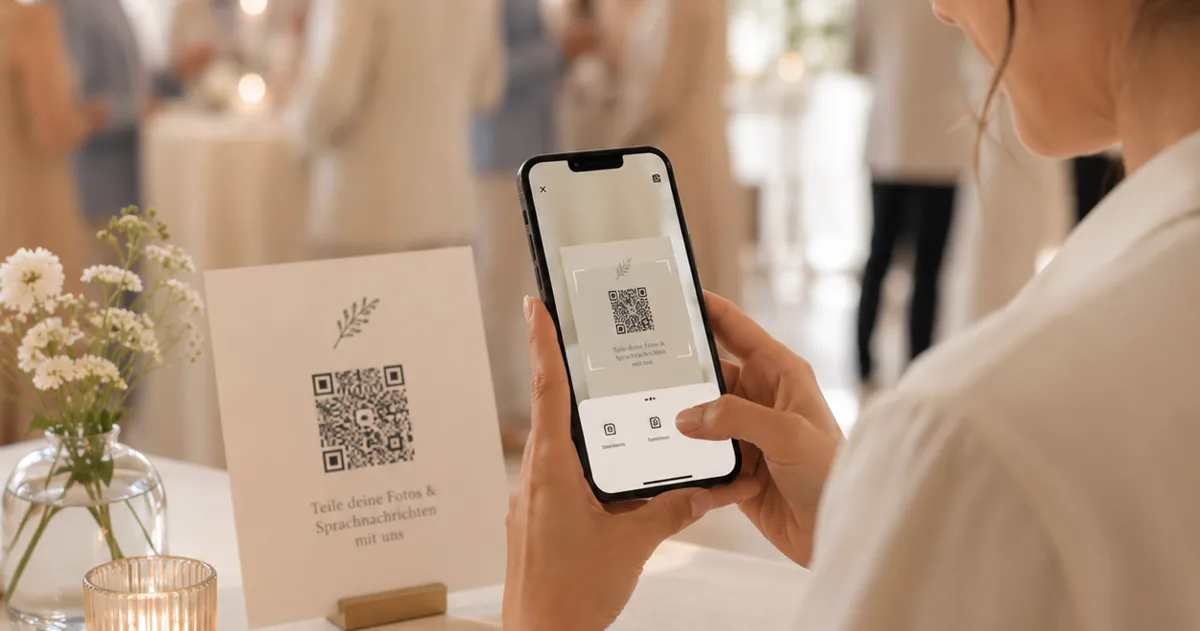 Guide
GuideAudio guestbook for weddings: skip the rental
An audio guestbook used to mean renting a retro phone for hundreds of euros. How to collect wedding voice messages with a QR code instead.